
OHMYclock
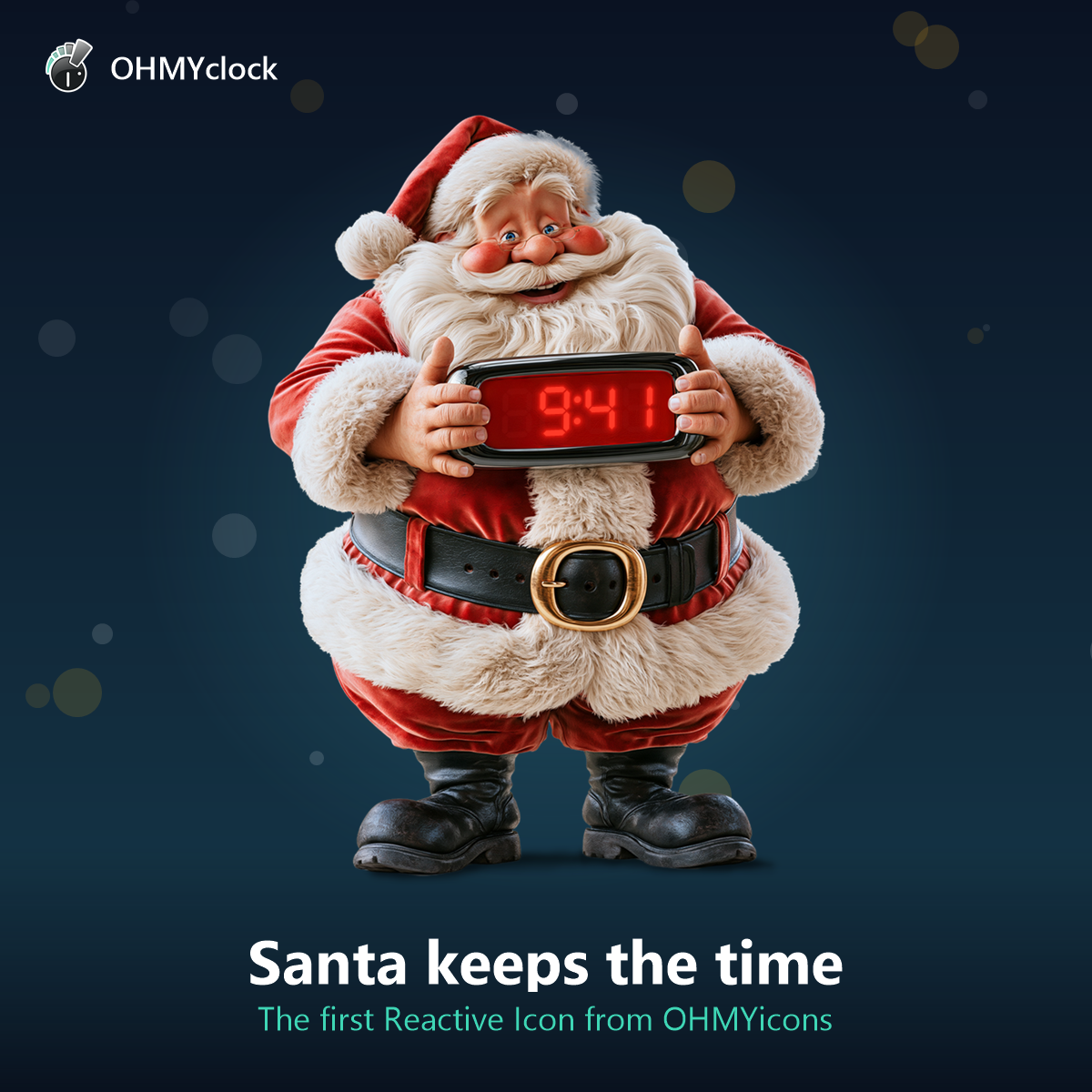
The first Reactive Icon from OHMYicons. Not just a clock: Santa comes to life on your Windows desktop and reacts to your moments. He counts down the last 10 seconds of the year, throws a party at midnight, celebrates every birthday you add… and keeps the time.
Windows 10 & 11 · Instant download · Free updates
Not just a clock. A Reactive Icon.
OHMYicons started with icons. Now they come to life. Reactive Icons live on your desktop and react to your moments, and OHMYclock is the first one.
Santa keeps the time, right on your desktop
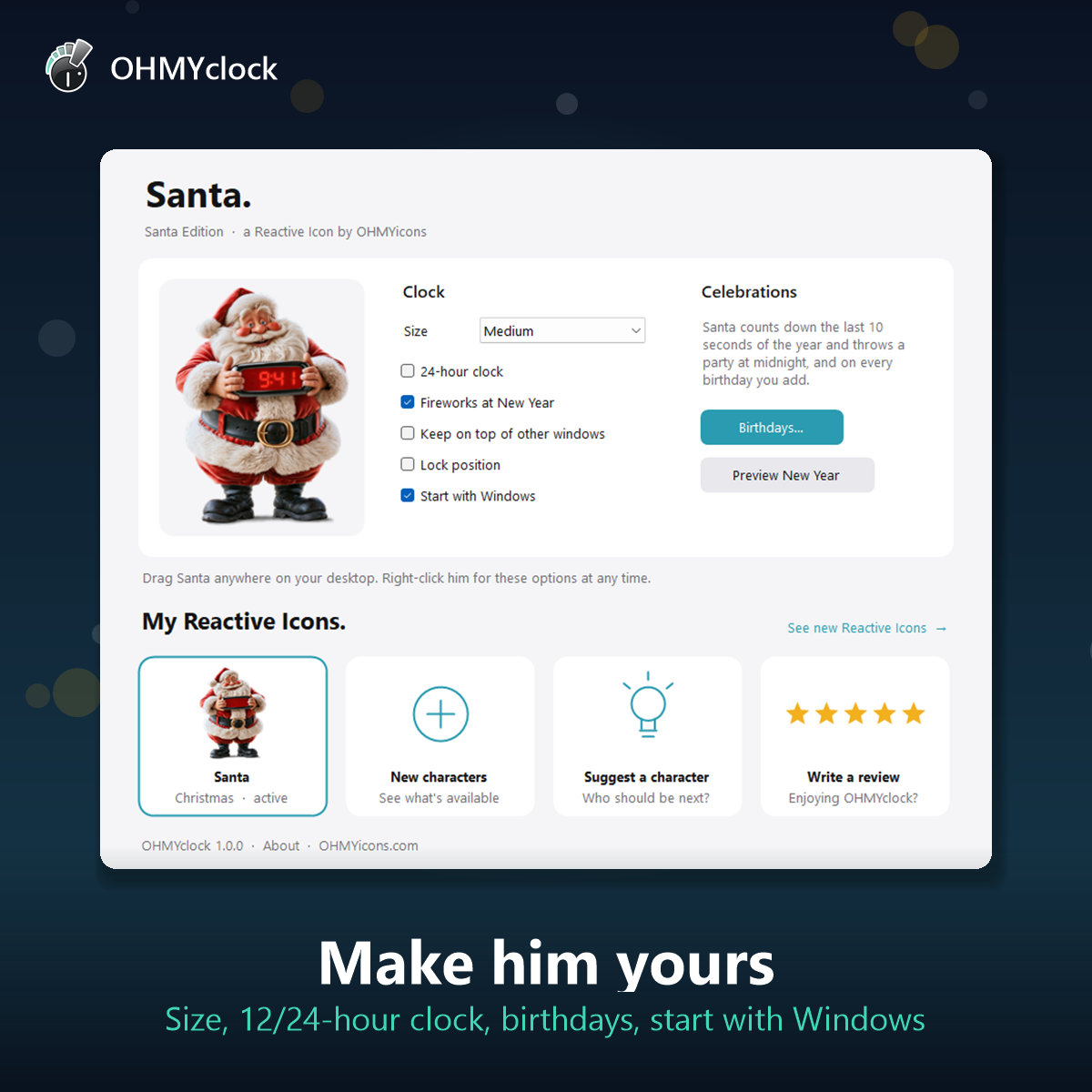
OHMYclock puts a jolly Santa on your desktop, holding a glowing LED clock that always shows your PC’s time. Drag him anywhere, pick his size, and he stays there, standing on your wallpaper while you work.
The best seat for New Year’s Eve
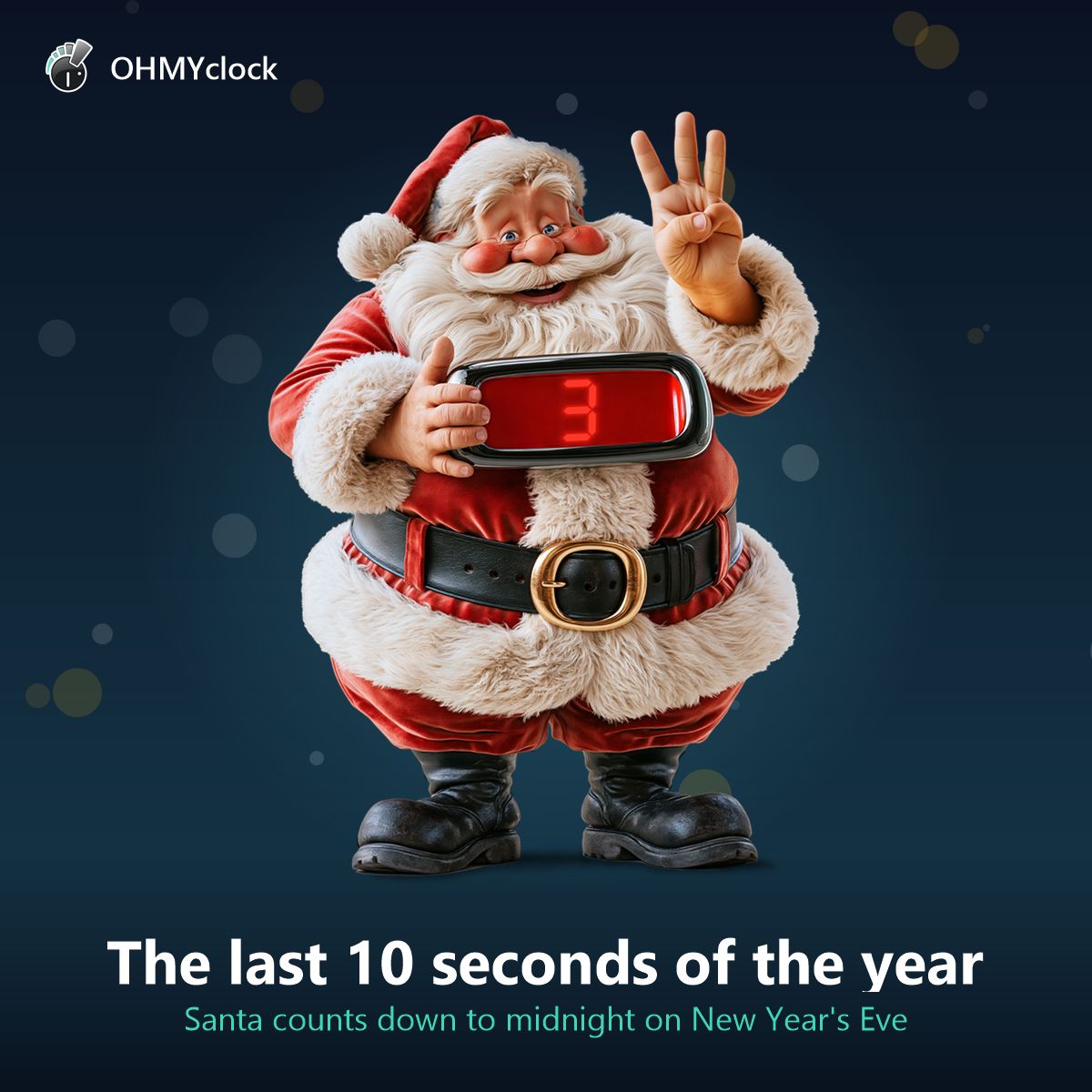
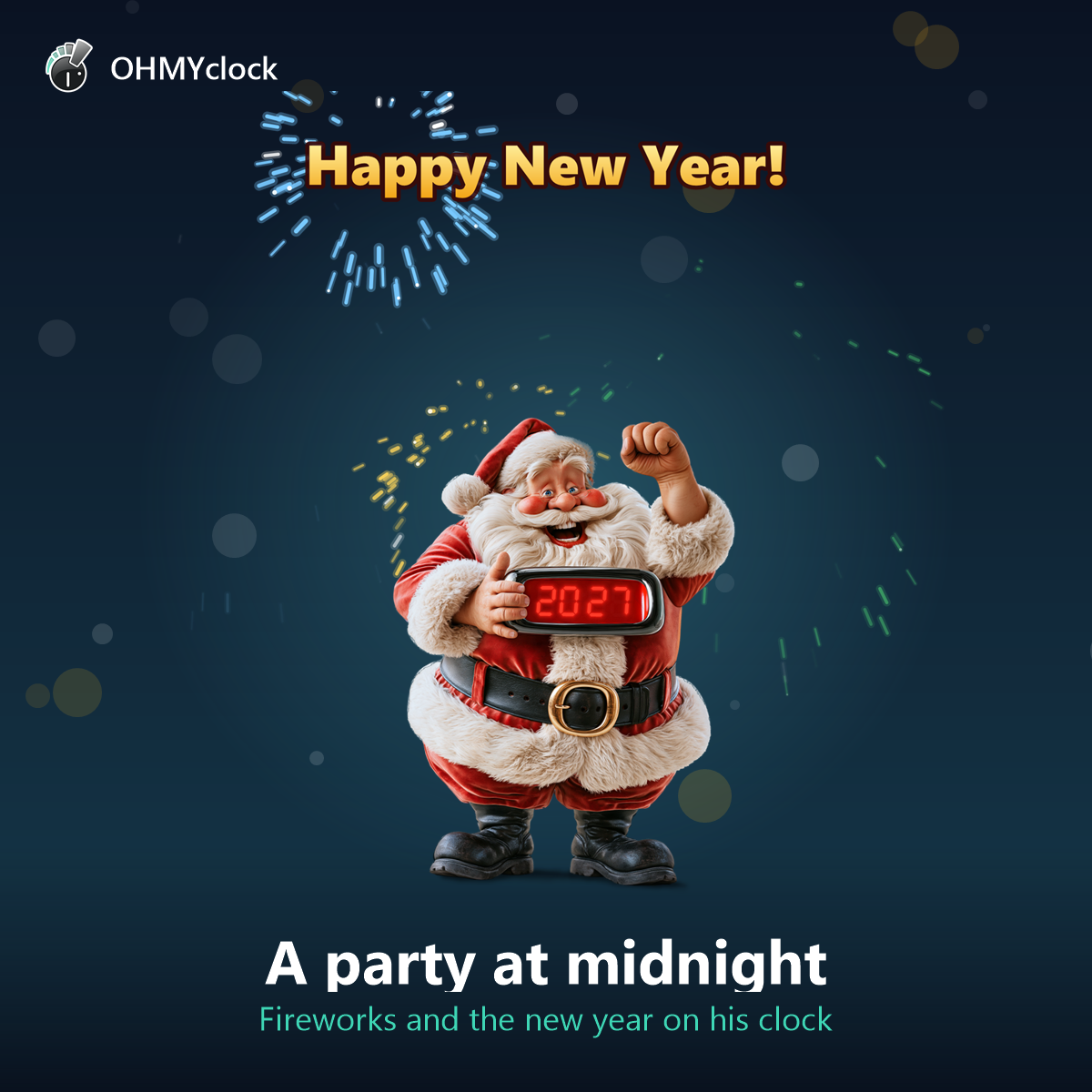
In the last 10 seconds of the year Santa counts down 10, 9, 8… on his clock, striking a new pose every second. At midnight he jumps for joy, fireworks fill the screen, and the new year lights up on his clock: Happy New Year!
Want to see it before December 31? Right-click Santa → Preview New Year.
Every birthday, a party
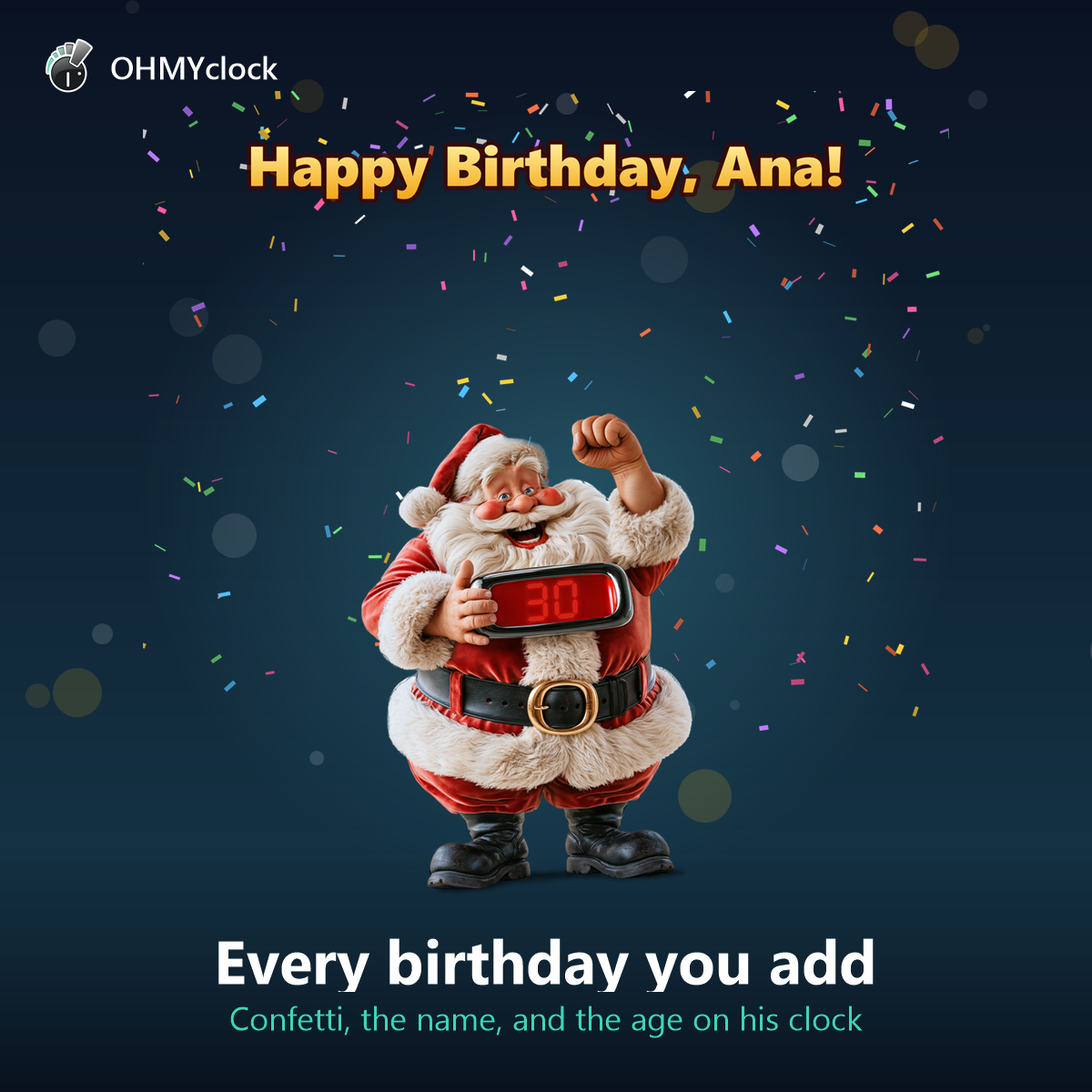
Add your family’s and friends’ birthdays. On the day, Santa throws a party with confetti and “Happy Birthday, Ana!”, and if you add the year of birth he shows the age on his clock. If your PC is off at midnight, he celebrates as soon as you turn it on.
Features
- Big, glowing LED clock, always in sync with your PC’s time (time zones, daylight saving and Windows time sync included)
- 12- or 24-hour clock
- 4 sizes, sharp on any screen and any display scaling
- New Year’s Eve countdown with Santa’s poses and a fireworks show at midnight
- Birthday celebrations with confetti, names and age
- Keep him on top of other windows, or behind them on the desktop
- Lock his position so he never moves by accident
- Starts with Windows (optional)
- Lightweight: uses virtually no CPU and less than 100 MB of memory
- Works offline: no account, no internet, nothing collected
- Digitally signed by Arnaez Studios, LLC
More Reactive Icons are coming
Santa is just the first. New Reactive Icons for other seasons and holidays are on the way, and you can tell us who should be next right from the app.
Requisitos
- Windows 10 (version 1809 or later) or Windows 11, 64-bit
- No administrator rights needed; installs for your user account
- About 150 MB of disk space
PYR
How do I install it?
Download OHMYclock-Setup-1.0.0.exe, run it and click Next. Santa appears on your desktop when setup finishes.
How do I change the settings?
Right-click Santa (or the OHMYclock icon next to the clock in the taskbar) → Settings…. Double-clicking the taskbar icon opens it too.
Does it work with more than one monitor?
Yes. Drag Santa to any screen; he keeps his size on screens with different scaling.
Why does Santa disappear when I press Win + D (Show desktop)?
Windows covers everything on Show desktop, and Santa comes back as soon as your windows do. If you want him always visible, turn on Keep on top of other windows.
Can I turn off the fireworks?
Yes: Settings → uncheck Fireworks at New Year. The countdown and the party still happen.
What if my PC is off at midnight on a birthday?
Santa celebrates as soon as you turn it on that day.
Does it slow down my PC?
No. Santa wakes up once a second to update his clock and uses almost no CPU. He only works harder during the 25 seconds of the New Year countdown and party, and the 15 seconds of each birthday party.
How do I uninstall it?
Windows Settings → Apps → Installed apps → OHMYclock → Uninstall.
Will I get updates?
Yes. Updates for OHMYclock are free: download the latest version anytime from My Account → Downloads.
Solo los usuarios registrados que hayan comprado este producto pueden hacer una valoración.
Productos relacionados
El precio original era: $11.00.$7.77El precio actual es: $7.77.
Valoraciones
No hay valoraciones aún.